Knowledge and AI
Each workspace has its own Knowledge base. Agents search it from the reply box, and the optional AI features use only the published articles of the conversation’s own workspace. AI uses provider connections you configure, with your own provider keys.
Knowledge articlesLink to this section
Open Admin → Settings → Knowledge. The page has four tabs: Articles, New article, Unanswered questions and Reference files.
- Articles are written in Markdown, up to 50,000 characters, with a title, optional tags and a Publication status of draft or published.
- Only published articles are visible to agents and AI. Drafts and articles from other workspaces are never returned.
- Owners and admins create and edit articles. Agents read published articles for workspaces they work in.
- Article HTML is sanitized. Scripts, styles, iframes, forms and images are removed. Links must be
http,httpsormailto. - Search is full-text. A question worded very differently from an article can miss it, so include the words customers actually use in titles and tags.
In the inbox, Search knowledge in the reply toolbar searches the conversation’s workspace and inserts an excerpt or the full text into the draft. Nothing is sent until the agent selects Send.
Convert reference files into articlesLink to this section
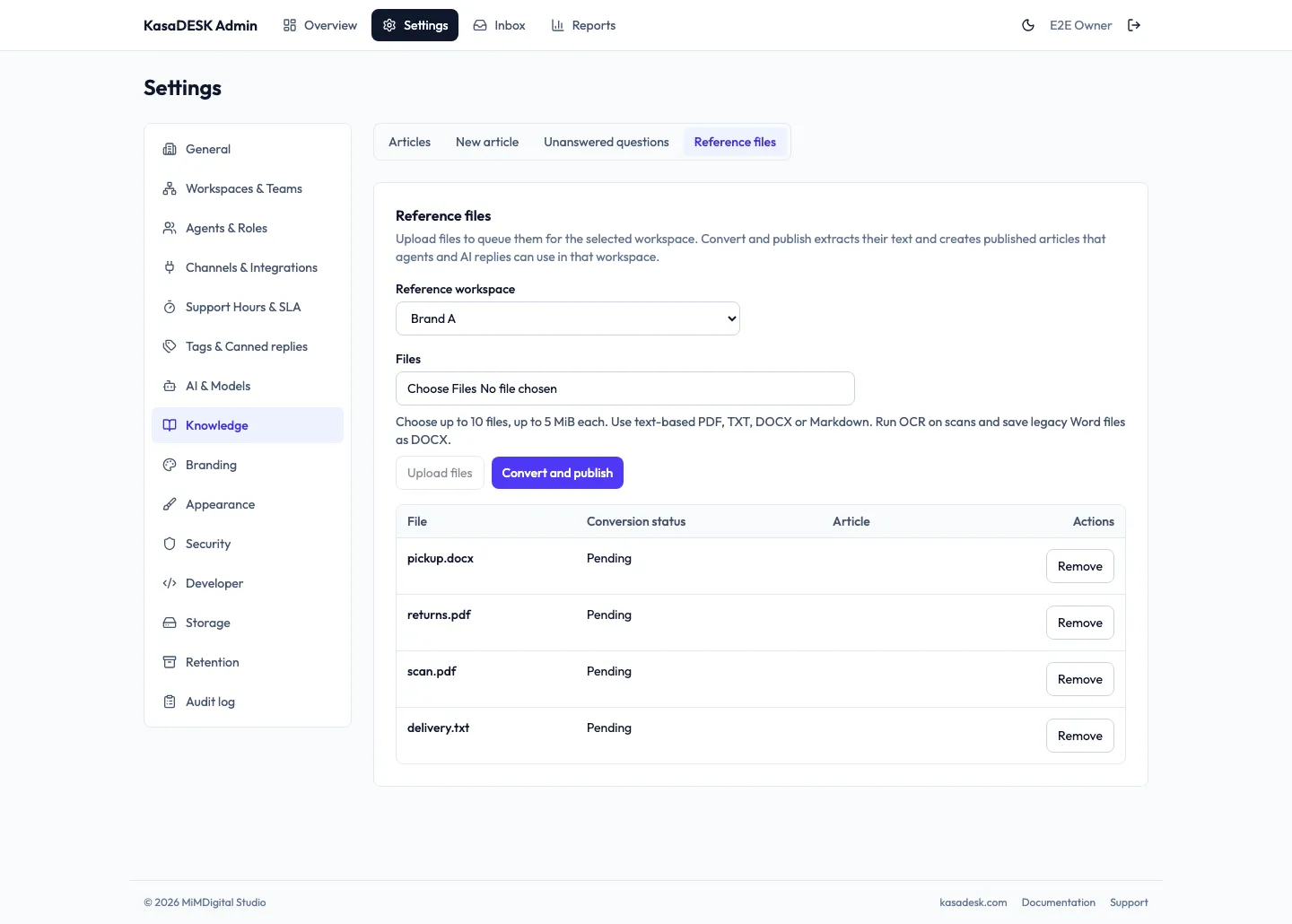
- Open Knowledge → Reference files.
- Choose the Reference workspace first. Files and articles belong to that workspace only.
- Under Files, choose up to 10 files at a time, up to 5 MiB each, and select Upload files. Uploaded files are listed as Pending. No article exists yet.
- Select Convert and publish. KasaDESK extracts the text into Markdown on the server, without calling any AI provider, and creates one published article per successfully converted file in that workspace. A status message reports how many files were published, for example Published articles for 3 of 4 files.
- Open Articles with the same workspace selected and review each new article.
| Format | What is extracted |
|---|---|
| Selectable text from up to 100 pages. Run OCR on image-only scans before uploading. Password-protected PDFs need a decrypted copy. | |
| DOCX | Main body text and paragraph breaks. Headers, footers, comments, footnotes and images are not imported. Save legacy .doc files as .docx first. |
| TXT | UTF-8, or UTF-16 with a byte-order mark. |
| Markdown | UTF-8 .md and .markdown. |
For each file row:
- A file that cannot be converted shows the reason, for example that a scan needs OCR, and offers Retry conversion.
- Edit article from file opens the normal article editor. You can change the text or set Publication back to draft.
- Download .md for file downloads the current article body.
- To replace a source document, remove the old file and upload the new one. Removing a converted file deletes its article.
Each workspace keeps up to 24 pending or failed files and 250 source records. Converted articles and source records are stored in PostgreSQL and included in backups.
Unanswered questionsLink to this section
Gaps in Knowledge are collected in Knowledge → Unanswered questions:
- Autopilot adds question-like customer messages when no published article matches.
- Agents can flag a customer message with Flag unanswered question in the conversation. The confirmation reads Added to Unanswered questions.
To answer one:
- Choose the Question workspace, open the question and select Write answer.
- Write the answer yourself, or select Generate draft. A draft is generated only from matching published articles in the same workspace. When nothing matches, no draft is produced.
- Save answer draft keeps a linked draft article and leaves the question open.
- Review and publish opens the article editor. Publishing the article closes the question and makes the answer searchable.
Connect an AI providerLink to this section
Open Admin → Settings → AI & Models.
- Under Provider connections, choose Add connection. Supported kinds are OpenAI-compatible servers, Anthropic, OpenRouter, DeepSeek and Google Gemini.
- Enter a name and API key. The key is write-only. KasaDESK shows only that a key is configured.
- Use Load models from provider to pick model IDs, or type one.
- Select Test connection. Only a successful real call marks the connection as tested. Changing the endpoint, kind, key or model clears the test.
- Under Shared model routing, choose a tested primary and up to three ordered fallbacks for each workload: Copilot, Autopilot, Voice dictation and Dictation cleanup.
Self-hosted model servers on private addresses are refused unless the operator sets AI_ALLOW_PRIVATE_BASE_URLS=true. In production, plain http endpoints also need that setting.
AI modes per workspaceLink to this section
Each workspace has an AI mode.
| Mode | What happens |
|---|---|
| Off | No AI drafting or automatic replies. |
| Copilot | Agents can use Draft reply with AI in the reply box. The draft is added to the box for the agent to check and edit. Nothing is sent automatically. |
| Autopilot | Copilot, plus automatic replies to customers within the guards below. Requires a tested Autopilot primary and at least one published article in the workspace. |
Autopilot guards:
- It answers only when a published article in the conversation’s own workspace matches the customer’s latest message. Without a match, the conversation goes to the human queue and the provider is not called.
- It answers only inside the AI coverage windows set in Support Hours & SLA.
- It stops when the customer asks for a person, when staff take over, or when the provider fails, declines or answers that it should hand off.
- It never sees internal notes.
- It skips channels that cannot carry a reply, and re-checks channel rules such as messaging windows before sending.
- It never answers a shared-channel conversation that is still choosing its brand.
Recent autopilot runs on the AI & Models page lists each run’s time, workspace, outcome and the number of articles used, without message text.
Customers asking for a personLink to this section
In a web chat handled by Autopilot during AI coverage, the customer sees Talk to support. Choosing it pauses AI replies for that conversation and queues it for staff. The React Native customer SDK offers the same request as Talk to a person. The control is not shown when Autopilot is not handling the conversation.
Writing Knowledge for AutopilotLink to this section
- Write one topic per article, with the customer’s own words in the title.
- State facts plainly. The model is instructed not to invent facts or take privileged actions.
- Keep commercial decisions such as discounts, refunds outside policy or contract terms out of Knowledge if staff must decide them case by case.
- Review Unanswered questions regularly and publish answers.
Agent writing toolsLink to this section
These appear in the reply box when the workspace’s AI configuration allows them. They never send anything on their own.
| Tool | Behavior |
|---|---|
| Draft reply with AI | Appends a draft grounded in the conversation and its workspace’s published articles. Shows AI draft added. Check every fact and edit before sending. |
| Clean up reply with AI | Proposes a copy-edited version of the text the agent typed. The agent chooses Keep original or Use suggestion. See Clean up a typed reply. |
| Voice dictation | Transcribes the agent’s speech into the reply box, with an optional cleanup and Use original. Audio is not stored. Requires HTTPS and microphone permission. |
| Search knowledge | Inserts published article text from the conversation’s workspace. |
Drafting, cleanup and dictation are hidden in Note mode.
What to verify with your own providerLink to this section
Automated checks for this release used local provider stand-ins. Before relying on AI with customers:
- Test connection succeeds for each provider connection you saved, including any speech-to-text model.
- A Copilot draft in a test conversation uses the right workspace’s articles.
- In a test workspace on Autopilot, a matching question gets a correct reply and a non-matching question goes to the human queue.
- Talk to support pauses AI and queues the conversation.
- Dictation works with your agents’ real microphones and browsers.