Staff inbox and notifications
The staff inbox at /inbox is where agents, supervisors and admins handle every channel. It shows only the conversations each person is authorized to see. See Roles and inbox access.
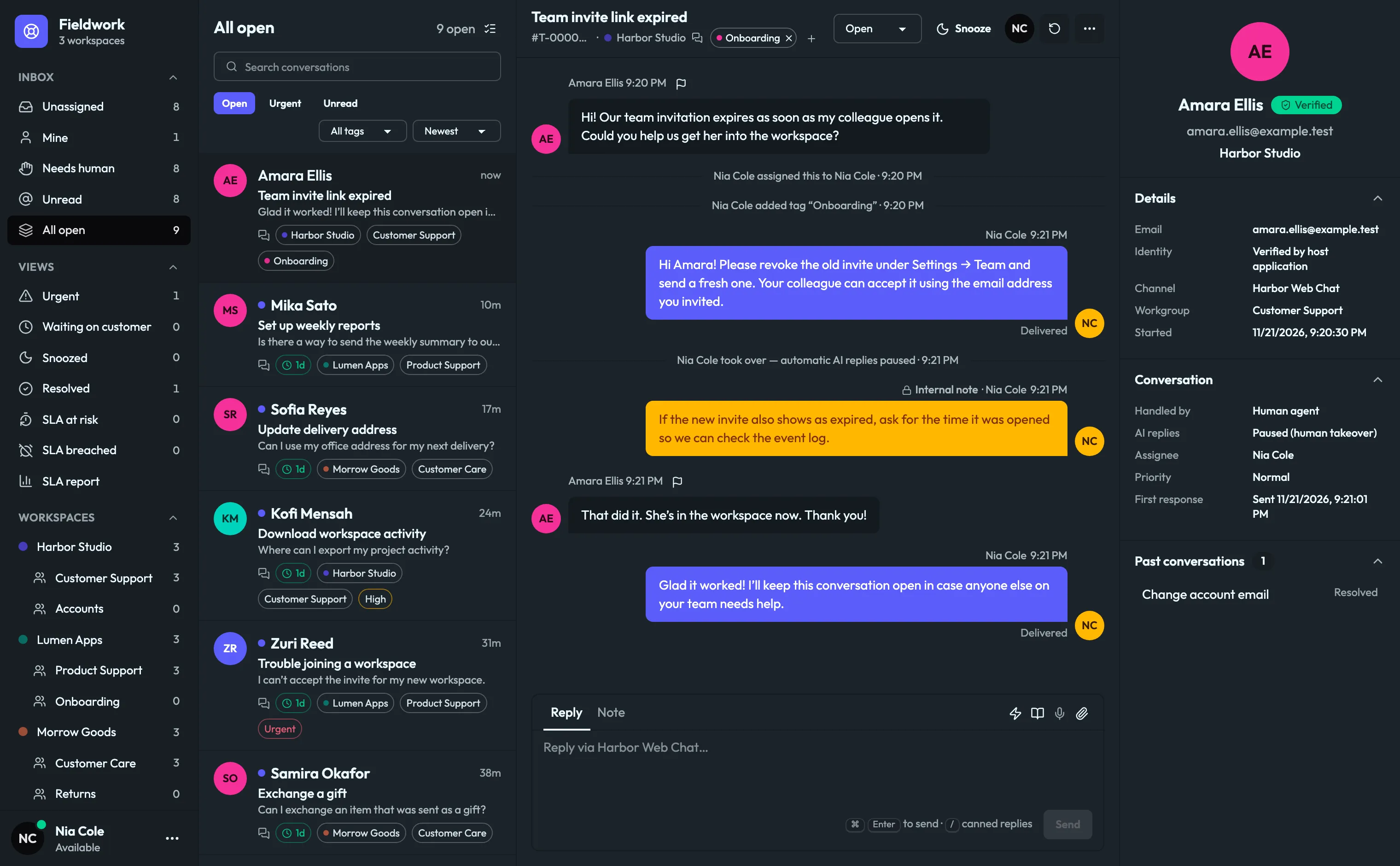
Inbox layoutLink to this section
| Area | Contents |
|---|---|
| Navigation | Inbox views (Unassigned, Mine, Needs human, Unread, All open), other Views (Urgent, Waiting on customer, Snoozed, Resolved, SLA at risk, SLA breached, SLA report) and Workspaces with their workgroups and counts. Your account menu is at the bottom. |
| Conversation list | Search, filter chips, tag filter and sort. Each row shows the brand and workgroup. Select conversations enables bulk assign, resolve, reopen, tag and snooze. |
| Thread | Title, conversation reference, brand, tags, status, Snooze, assignee and the … actions menu. Messages, events, internal notes and the composer. |
| Customer panel | Customer details and verification state, channel, workgroup, handling state, assignee, priority, first response and past conversations. Customer records appears for verified customers when a records connection is enabled. |
Search accepts names, text and full conversation references such as T-0000C. Reference search includes resolved and snoozed conversations in your workgroups.
Work a conversationLink to this section
- Check the origin. The header and customer panel show the brand, channel and workgroup. The identity line shows whether the customer is a guest, unverified (self-declared name or email) or Verified by the host application.
- Assign. Take the conversation or assign a teammate from the assignee control. Agents assign within their workgroups. Supervisors can reassign within their workspaces.
- Move if needed. Use … to move to another workgroup in the same brand. On a shared channel, use the Brand › Workgroup button to move between brands.
- Reply or add a note. See below.
- Set the status. Use the status control to mark the conversation pending or resolved, or reopen it. Snooze hides it until a time or until the customer replies.
- Tag it from the header for reporting and filtering.
A customer message on a resolved conversation reopens it.
Public replies and private notesLink to this section
The composer has two tabs.
- Reply sends to the customer through the conversation’s own channel. The placeholder names the channel, for example Reply via Harbor Web Chat…. Press the shortcut shown or Send.
- Note adds an internal note, shown with a lock and a highlighted background. Notes never leave the server. They are never sent to a channel, the widget, the public API, webhooks or AI providers.
The reply toolbar offers, where enabled: Draft reply with AI, Clean up reply with AI, canned replies (type /), Search knowledge, voice dictation and attachments. On provider channels, the attachment picker offers only the file types that provider accepts and explains any refusal before upload. Delivery states such as Accepted by provider, Delivered and Read appear under replies where the provider reports them.
When staff reply or take over, automatic AI replies pause for that conversation and the timeline records it.
Clean up a typed replyLink to this section
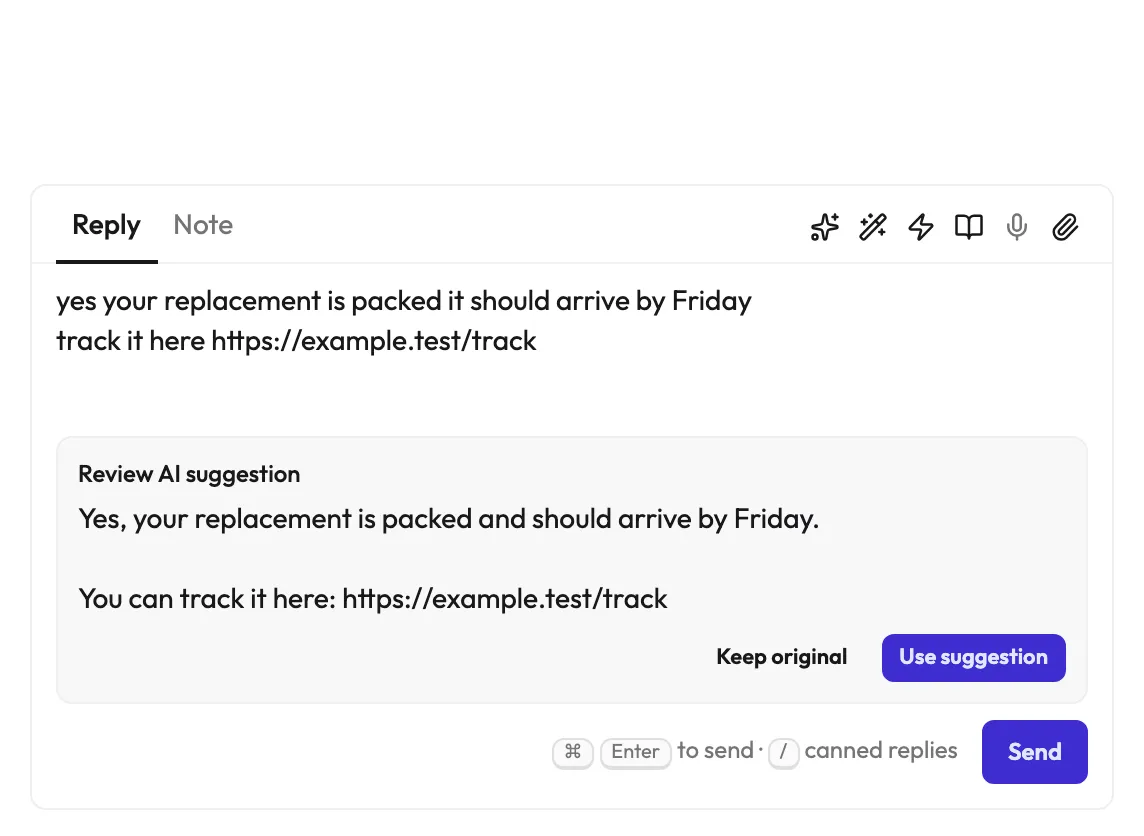
- Type a reply in Reply mode. Clean up reply with AI becomes available when there is text.
- Select it. While it works, the status reads Cleaning up your reply. Cancel cleanup stops it.
- Review the suggestion under Review AI suggestion. Choose Keep original or Use suggestion. Either way the text stays editable and nothing is sent.
- Select Send when ready.
If you edit the draft, switch to Note, or open another conversation while cleanup runs, the pending suggestion is discarded. If cleanup fails, your draft is left intact. The tool requires a tested AI connection for the workspace. See Knowledge and AI.
Callback requestsLink to this section
When a workspace allows callback requests, a web chat customer with an active ticket can choose Request a callback and enter an international phone number. The ticket timeline shows Customer requested a call at +… and the conversation is marked unread. Each ticket accepts one request. The customer can keep chatting. Staff arrange the call through their usual phone process or the Voice dialer if Twilio Voice is connected.
Inbox alertsLink to this section
Each staff member controls their own alerts. In the inbox, open Account menu → Inbox notifications.
- Inbox alerts shows an in-app alert for each eligible incoming customer message while the console is open. Grant the browser’s notification permission to also see a system notification when the console is in the background.
- Inbox message sound plays a chime with alerts. Browsers allow sound only after you have interacted with the page. Muting keeps the visual alerts.
Both settings are off for new accounts and follow your staff account across browsers and the staff phone app.
Eligibility:
- An assigned conversation alerts its current assignee.
- An unassigned customer message alerts opted-in active staff with access to that queue.
- Staff replies, AI replies, internal notes and catch-up after reconnecting do not alert.
- Each message alerts once, even with several console tabs open.
- Selecting an alert opens the conversation as the signed-in staff member, after an access check.
Background alerts in the browserLink to this section
With background alerts enabled by your administrator, a supported browser can show system notifications after its console windows close, while the enrolled sign-in is active. Enroll each browser profile under Inbox notifications. Signing out ends that browser’s enrollment. Disconnect background alerts removes it immediately while you stay signed in. Notifications say only the product name and New inbox message. Your browser and operating system control permission prompts, sound, and whether delivery continues after the browser quits.
Operator setup for background alertsLink to this section
Foreground and open-window alerts need no extra configuration. To enable browser Web Push:
-
Serve the console, its manifest and worker, and
/api/v1from the installation’s dedicated HTTPS origin. -
Generate a key pair locally from the release checkout:
pnpm --filter @kasadesk/server exec web-push generate-vapid-keys -
Set
WEB_PUSH_VAPID_PUBLIC_KEY,WEB_PUSH_VAPID_PRIVATE_KEYandWEB_PUSH_VAPID_SUBJECT(an operator contact such asmailto:[email protected]) in the server environment. Keep the private key with your deployment secrets. -
Make sure the release’s migrations are applied, including
0035_staff_inbox_notifications, and that workers are running. -
Allow TLS egress from the server to the push services your staff’s browsers use, such as Google FCM, Mozilla, Apple Web Push and Windows Push Notification Services.
-
Ask each staff member to enroll their browser, then send a test message from a test customer and confirm the notification arrives with the console closed.
Rotating the key pair requires every browser to enroll again. Push delivery is best effort. A missed push never loses the message, which stays in the inbox.
Install the console as a desktop appLink to this section
- In the inbox, open Account menu → Profile → Install KasaDESK.
- Use the offered install button, the Chrome or Edge install control, or Safari’s File → Add to Dock. On supported iPhones and iPads, use Safari’s Add to Home Screen.
- Open the installed app. It opens the installation’s normal start page, signs you in as usual and takes you to your role’s landing page.
The installed app needs a network connection. It does not cache conversations or credentials.
Continue on your phoneLink to this section
Open a conversation, then choose Continue on phone next to Availability in your inbox profile. Accept the handoff in the KasaDESK staff phone app, signed in to the same installation and account, within five minutes. KasaDESK checks your access to the conversation again when you accept, and the handoff never carries credentials or message content. The staff phone app’s store availability has not been announced.
Calls in the inboxLink to this section
If Twilio Voice or WhatsApp calling is connected, agents receive calls in the browser inbox. Set presence to Available and keep the inbox tab open. Account menu → Call history lists calls you placed or answered. Admins review all calls in Settings → Agents & Roles → Call history. Browser calling requires HTTPS and microphone permission. See Channels and provider setup.
Troubleshoot the inboxLink to this section
| Symptom | Check |
|---|---|
| New messages appear only after refresh | The proxy is buffering /api/v1/inbox/events or timing it out. See the reverse proxy section. While disconnected, a visible inbox polls every 10 seconds. |
| No alerts | Inbox alerts is off for your account, the conversation is assigned to someone else, or the browser blocked notifications. |
| No sound | Inbox message sound is off, or you have not interacted with the page since it loaded. |
| No background alerts | Web Push keys are not configured, the browser profile is not enrolled, or the browser was signed out. |
| A conversation link shows nothing | It belongs to a workgroup or workspace outside your access. |
| Microphone or calling unavailable | The console is not on HTTPS, microphone permission was denied, or the workspace has no tested speech or voice configuration. |