Workspaces, roles and routing
One KasaDESK installation belongs to one organization. Inside it, each brand or product is a workspace. Each workspace owns its channels, workgroups, customer records, Knowledge articles, AI settings and customer chat theme. Staff work from one shared inbox that shows only the queues they are authorized for.
Core conceptsLink to this section
| Term | Meaning |
|---|---|
| Organization | The single owner of the installation. Name and time zone are set during first-run setup. |
| Workspace (brand) | A brand or product. Created in Admin → Settings → Workspaces & Teams. |
| Workgroup | A queue inside one workspace, for example General or Billing. Staff become members of workgroups. |
| Channel | A customer entry point such as a Web Chat site, a mailbox, a WhatsApp number or a Telegram bot. Each channel routes new conversations to a workspace and a default workgroup. |
| Conversation (ticket) | Stays pinned to its originating channel. Its workspace, workgroup and customer determine who can read it, which Knowledge the AI uses and which account sends replies. |
Every conversation, customer, workspace, workgroup, staff account, channel and message has a short reference such as T-0000C. Paste a full conversation reference, with or without #, into inbox search to find it. References are labels and do not grant access.
Roles and inbox accessLink to this section
KasaDESK has four staff roles. The server enforces each capability independently of what the console shows.
| Role | Lands on | Inbox scope | Admin Settings | Reports |
|---|---|---|---|---|
| Owner | /admin |
Workgroups they belong to | Yes, including staff management and MFA resets | All workspaces |
| Admin | /admin |
Workgroups they belong to | Yes, including staff management and MFA resets | All workspaces |
| Supervisor | /inbox |
Every conversation in each workspace where they belong to at least one workgroup, including workgroups they are not in. Can reassign and move conversations within that workspace. | No | SLA reports for their workspaces |
| Agent | /inbox |
Only conversations in their own workgroups | No | No |
- Administrative access and inbox access are separate. Give an owner or admin workgroup membership when they need to handle its conversations.
- A supervisor’s scope follows their workgroup memberships. There is no separate “supervised workspaces” setting.
- Supervisors always need an authenticator, even if agent MFA is optional.
- Changing a staff member’s role signs out their sessions. The new scope applies at their next sign-in.
- Conversations outside a person’s scope are not shown and return “not found” if opened by link.
Invite staffLink to this section
- Go to Admin → Settings → Agents & Roles, enter the person’s email and role, and create an invitation. Share the resulting single-use link privately. It uses
AGENT_CONSOLE_ORIGINand expires after 72 hours. - The invitee opens the link and sets a password. They sign in and complete the authenticator step when their role or the organization policy requires it.
- Give agents and supervisors membership in the right workgroups. A workgroup chip in Workspaces & Teams shows its member count, for example Support · 3 members.
Use Admin → Settings → Security to decide whether agents must use an authenticator. Owners, admins and supervisors always need one. Owners and admins can reset another staff member’s MFA. The reset requires step-up confirmation, is audited and signs out that person’s sessions.
To remove a person, disable the account first. A disabled account can then be deleted. Their past messages remain in conversation history.
Example: two brands, one inboxLink to this section
| Workspace | Workgroups | Channels |
|---|---|---|
| Harbor Studio | Customer Support, Accounts | Harbor website chat, [email protected] |
| Lumen Apps | Product Support, Onboarding | Lumen in-app chat, Lumen Telegram bot |
Agent Sam is a member of Harbor Studio → Customer Support and Lumen Apps → Product Support. Sam’s inbox lists both queues together, each with its brand badge. Sam never sees Accounts or Onboarding.
When Sam replies to a Lumen Telegram conversation, KasaDESK sends it through the Lumen bot saved on that conversation. Sam cannot choose a different sending account. Copilot and Autopilot use only Lumen’s published Knowledge.
A supervisor who belongs to Lumen Apps → Product Support sees every Lumen conversation, including Onboarding, and none from Harbor Studio.
Configure a workspaceLink to this section
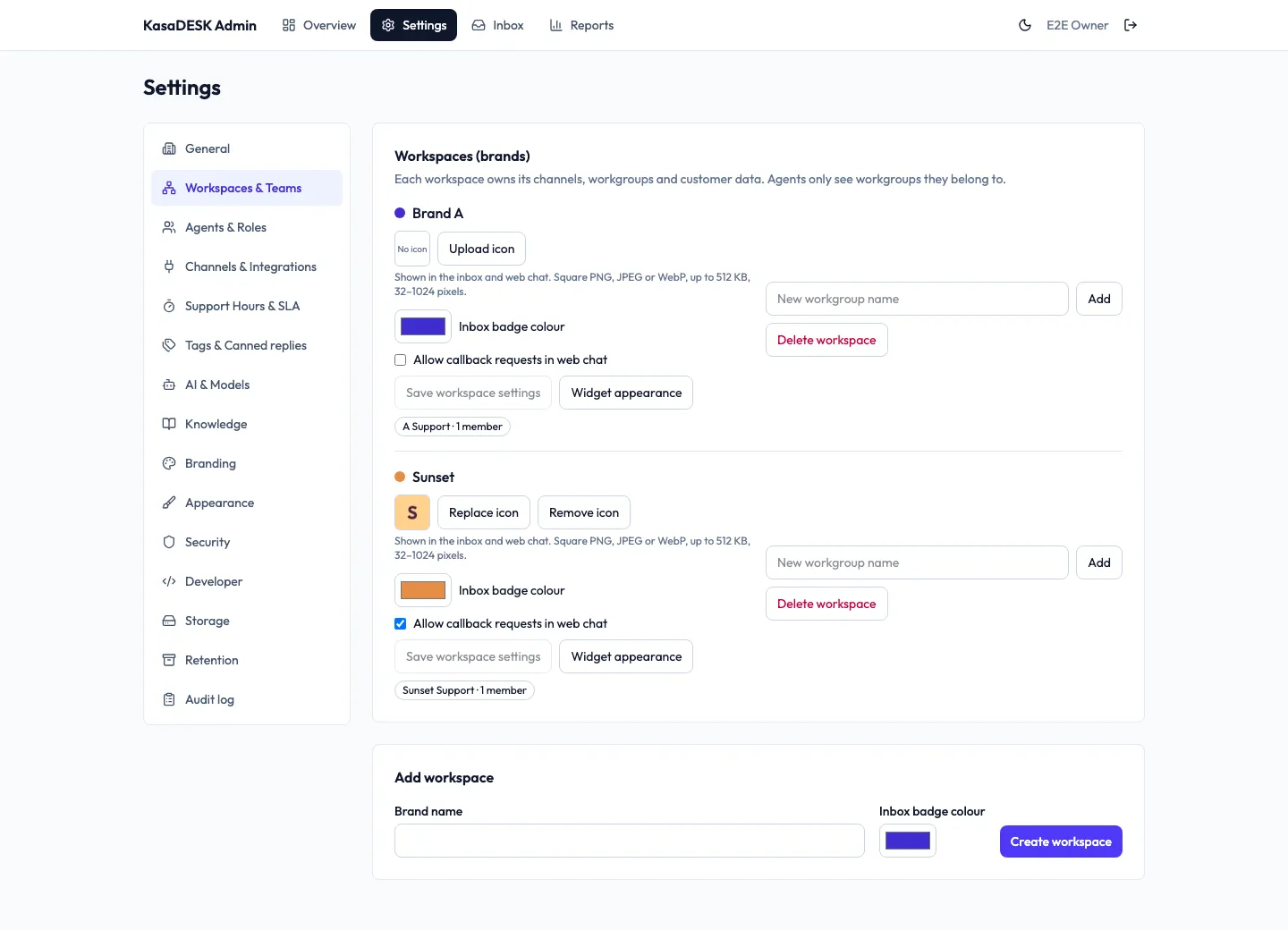
Each workspace row in Admin → Settings → Workspaces & Teams offers:
- Upload icon: a square PNG, JPEG or WebP image, up to 512 KB and 32 to 1024 pixels. It appears in the inbox and in the web chat header.
- Inbox badge colour: the brand dot that staff see in the inbox. It is independent of the customer chat colours.
- Allow callback requests in web chat: lets customers with an active ticket request a phone callback. Off by default. See Callback requests.
- Save workspace settings: saves the badge colour and callback setting. The status reads Workspace settings saved.
- Widget appearance: opens Admin → Settings → Appearance → Customer chat for this brand.
- New workgroup name and Add: create a workgroup.
- Delete workspace: archives the brand. Its history stays in storage. Archiving removes it from shared channels.
To change a badge colour: edit Inbox badge colour, choose Save workspace settings, reload the page, and check that the brand dot shows the new colour. Changing the badge never changes the published customer chat theme.
Route conversationsLink to this section
- Default workgroup. Every channel destination has a default workgroup. New conversations from that channel start there. Changing the default affects only new conversations.
- Assignment. Agents can take or assign conversations within their workgroups. Supervisors can reassign across their workspaces. An assignee is kept only if they are a member of the conversation’s workgroup.
- Move within a workspace. Use the conversation’s … menu to move it to another workgroup of the same brand.
- Move between brands on a shared channel. When one provider account serves several brands, the conversation header shows a Brand › Workgroup button. Moving switches workspace, workgroup and customer record together, removes the old brand’s tags, and adds an internal note and timeline entry. See Share one provider account across brands.
- A conversation’s channel never changes. Replies always leave through the channel the customer used.
Shared canned replies and conversation tagsLink to this section
Open Admin → Settings → Tags & Canned replies.
- Shared canned replies are snippets for one workspace. In the reply box, type
/to open the picker. Placeholders such as{{customer.name}},{{workspace.name}}and{{agent.first_name}}are filled in. Inserting a snippet sends nothing. - Conversation tags belong to one workspace. Agents add tags from the conversation header and filter the list by tag. A tag from another brand cannot be applied.
Support hours and SLALink to this section
Admin → Settings → Support Hours & SLA sets weekly hours in an IANA time zone, holidays and closures, first-response and next-response targets, and the warning window. Inbox views SLA at risk and SLA breached list affected conversations. Alerts are inbox notices and timeline events. The same page sets AI coverage windows used by Autopilot. See Knowledge and AI.
Other administration pagesLink to this section
| Page | Use |
|---|---|
| General | Organization details. |
| Channels & Integrations | Connect and route channels. See Channels and provider setup. |
| AI & Models | Provider connections and shared model routing. |
| Knowledge | Articles, reference files and unanswered questions. |
| Branding | Organization logo, favicon and staff sign-in screen design. |
| Appearance | Agent console theme and per-brand Customer chat theme. |
| Developer | API keys, signed webhooks and Customer records. See Customer integrations. |
| Storage | S3-compatible attachment storage and the scheduled off-site backup destination. |
| Retention | Per-workspace deletion rules and legal holds. Off until an admin turns them on. |
| Audit log | Append-only record of administrative actions. |